











Column mode in UltraEdit / UEStudio
One of UltraEdit’s most powerful features is its easy-to-use column mode. Column mode, also referred to as block mode or block editing, allows you to select columns of data (as opposed to rows) by changing the way you can select text in the editor. With column mode, you can edit columns of data in just seconds!
When in column mode, sometimes referred to as “block mode”, UltraEdit will highlight text based on the column position of the first character you select to the column of the last character you select. Text selected in column mode does not automatically include all text between the start and end position, but does include all text in the columns between the first and last character you select.
Column Mode
When column mode is enabled, additional features in the column menu are enabled as well. In the next few paragraphs, we’ll take a look at some of those features.
Simple editing in column mode
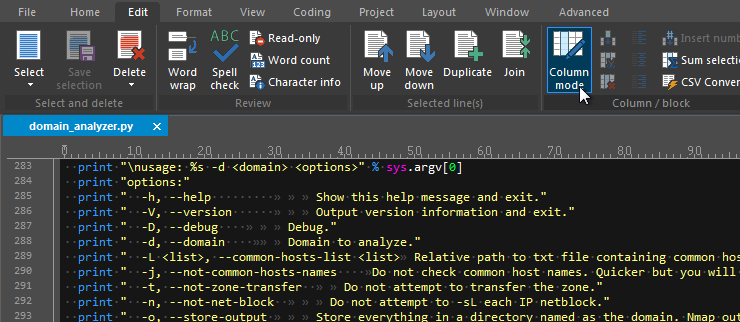
To enable column mode, press Alt + C, or click Column mode in the Edit tab.
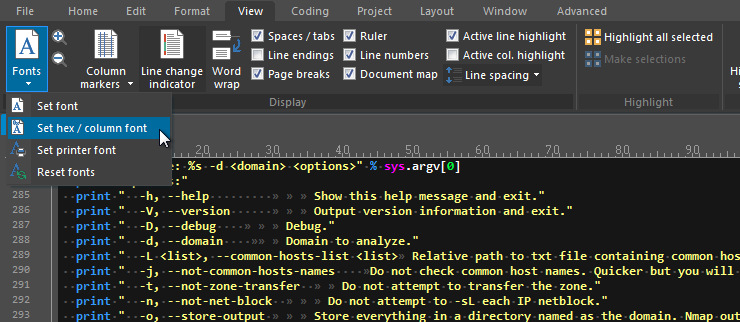
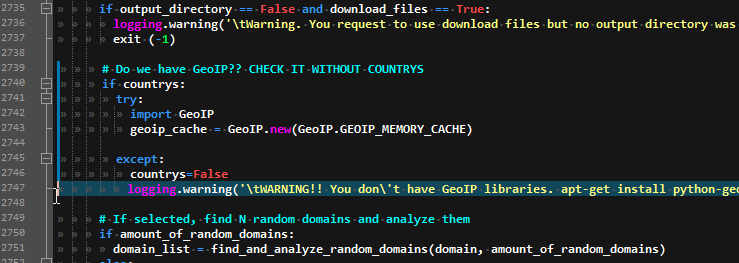
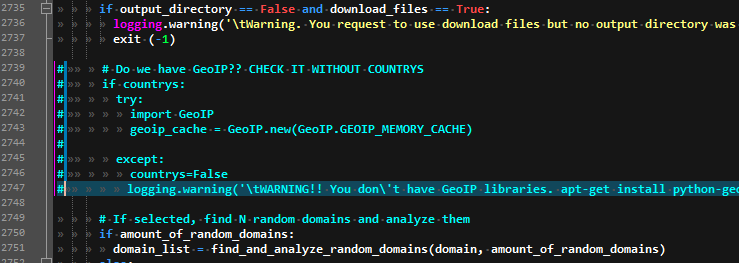
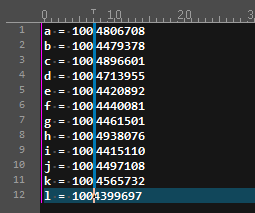
You can prepend an entire column of data, with the same character, by simply typing.
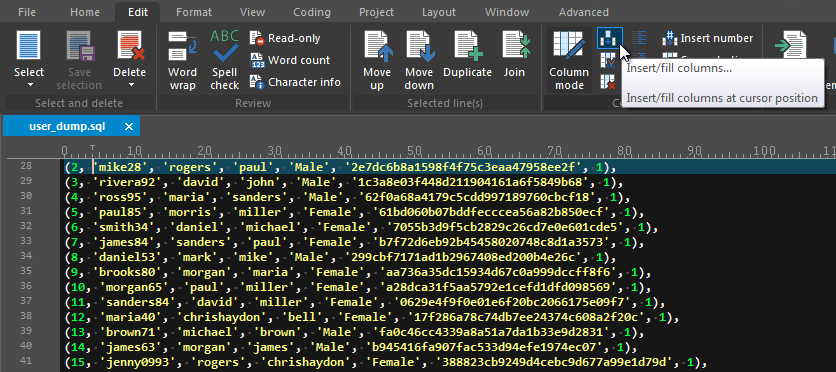
Insert / fill columns
The “Insert / fill columns” command in the “Column / block” group of the Edit tab allows you to enter a text string into a specific column in your data. If a column is selected, the string will be inserted into every selected line. However if nothing is selected, the string will be inserted into all lines in the file. If there is no text data at the specified column on a row within the file, spaces will be added to pad the row, thereby allowing the text to be inserted in the correct position.
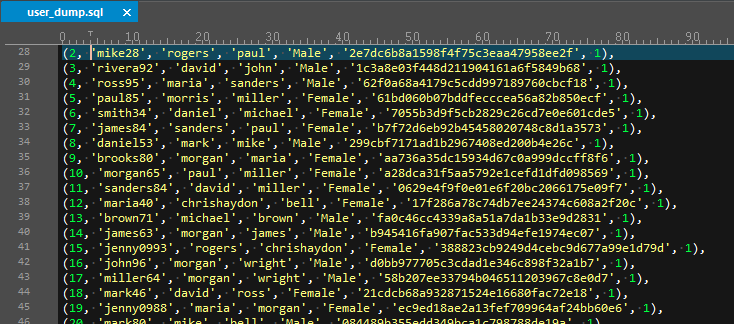
In the below sample data, we need to add a new field to each row of SQL data. This can be done using the manual methods described above, but it would be much easier and faster with the “Insert / fill columns” command.
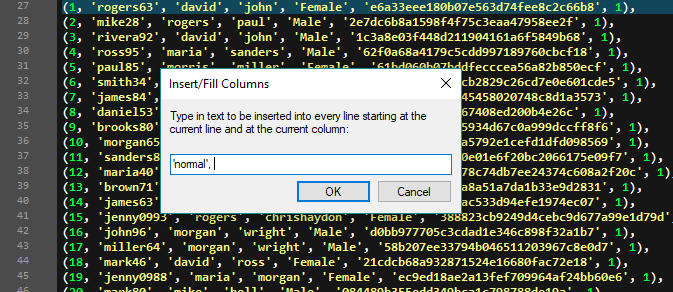
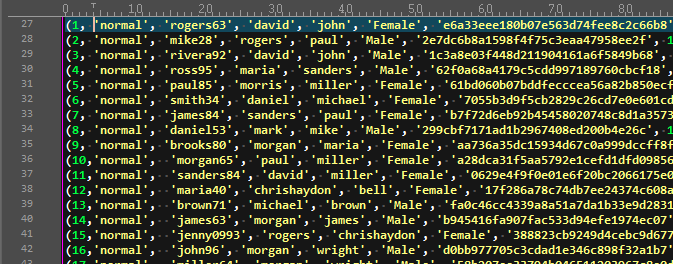
As shown in the above screenshot, UltraEdit inserts the string in the caret-specific position on every line. If a selection had been made, the string would have been inserted into only every selected line.
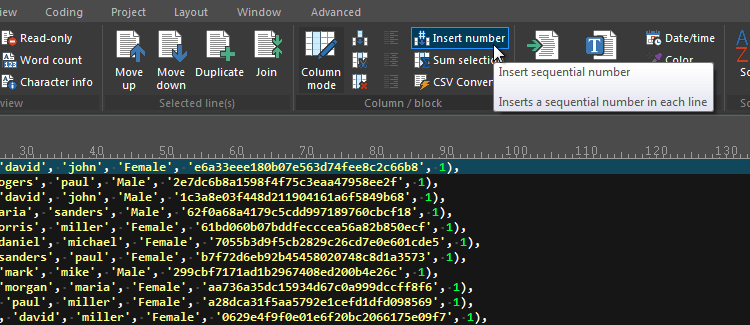
Insert number
Another useful feature of column mode is the “Insert number” feature. This is very helpful when you need to numerically order a list of data. You can use this feature by positioning your caret into the top row of the column where you need to add numbers. You can then click the “Insert number” in the Edit tab.
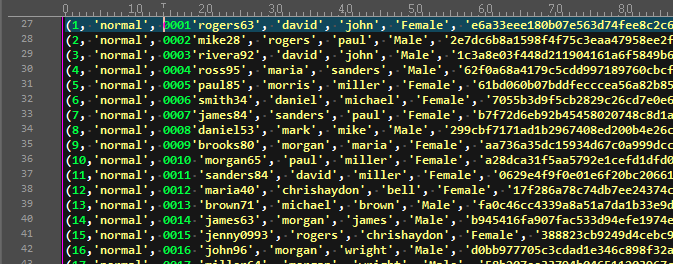
If any text is highlighted at the invocation of this command, the highlighted text will be replaced by the inserted line numbers. The spacing required for the line numbers is calculated automatically based on the number of lines that will have a number inserted, the initial value and the increment.
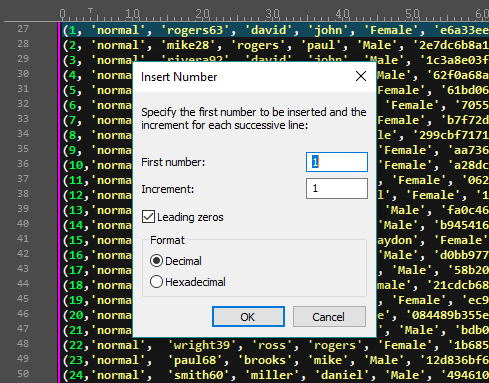
Increment: The digit(s) you enter here determines the increment of the count. For instance, if you enter “2” here, while your “First Number” is still specified as “10”, the number sequence would begin “10, 12, 14…” etc.
Leading zeros: This option will prepend each number with the appropriate amount of zeros to pad the field to the same width (in characters) as the maximum number. For instance, if you begin a count with “1,” and set the increment to “50” with “Leading Zeros” checked, your list would begin “001, 051, 101…”
For this tutorial, we only need numbering beginning with 1 and incrementing by 1, so we will leave the default options and press “OK”.
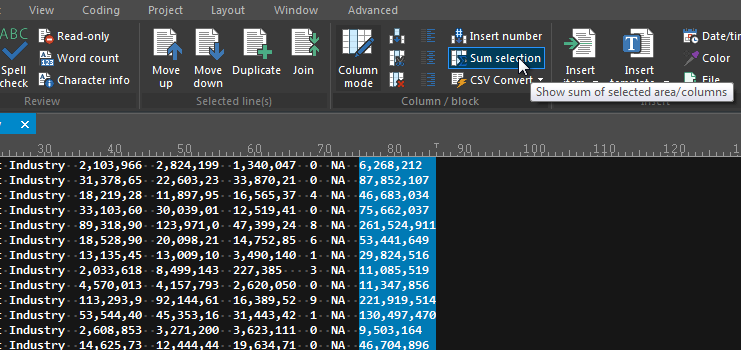
One way to save time and avoid error when adding column-specific data is to use “Sum selection” in the Edit tab. In our sample data below, we have some random sales figures that need to be totaled. Using the “Sum columns / selection” command we can total all the numbers that appear in a selected area.
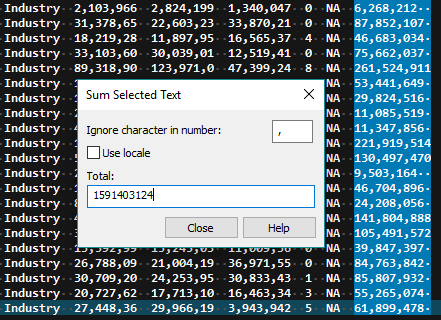
The “Ignore character in number” allows you to specify any character that should be ignored in a number. By default, this is set to a comma. This allows you to get the sum of a column of numbers where, for example, “1000” is written as “1,000”.
Other column mode features
There are several other column mode features in the “Column / block” group of the Edit tab which haven’t been covered here.
Delete / cut columns
These commands allow you to either delete or cut a specified number of columns from each row. Selecting this will prompt you for a number of columns you would like to delete or cut. The delete or cut will begin at the current caret position and will span the number of columns you specify. If you enter a value of 0, only the selected column will be deleted or cut.
CSV convert » Convert to fixed width
This function allows you to convert a file from character delimited fields to fixed columns. This is particularly useful where column manipulation is required, but difficult because of different field widths for each row. This function allows you to specify separator characters and field widths. You are also given the option to “scan” the file for UltraEdit to automatically detect field widths.
CSV convert » Convert fixed-width to CSV
The opposite of “Convert to fixed width,” this function allows you to convert a file from fixed field widths to character delimited fields.
Left / center / right justify
These functions allow you to justify a selected column of data, with the boundaries of the selection acting as the margins. Left-justifying a column of data will justify the data against the left of your selection, while right-justifying will do the opposite. Center-justifying the column of data will center the data within the selection.